Workflow Stories #1: How Rajan Told 2,000 People About His Dream Without a Single Spam Blast
 Arun Philips
Workflow Stories is our new series on the DreamStarter blog: first-person walkthroughs of real workflows, shown through the dreams of our first users. Real numbers, real screens, and the exact steps to run the same play on your own dream. This is story number one. ✨
One of the first dreams ever created on DreamStarter belongs to Rajan Philips. His dream is called Wordsmith's Corner: a YouTube channel (and a companion book in the making) dedicated to spreading the love of the English language through the history of popular words and etymology explainers. His audience is English students and teachers who are tired of dry, academic resources and want word origins to feel like stories again.
Rajan's problem was the one every new creator has. The channel was live at @thewordsmithscorner, the videos were coming, and almost nobody knew. Meanwhile he had something most creators forget they own: decades of accumulated contacts. Colleagues, students, friends, family. Over two thousand people who would genuinely be happy to hear what he was building.
The distance between “I have their contact details somewhere” and “they all heard from me personally” is where most announcements die. Here's how we closed it, and how you can too.
📖 Step 1: The dream comes first
Everything on DreamStarter starts with a Dream. The AI Dream Guide interviewed Rajan one question at a time and assembled his Dream Brief: what Wordsmith's Corner is, who it's for, why it matters, and what's already live. That brief becomes the context every agent reads before doing anything. When an email gets drafted later, it's drafted by an agent that knows this is a lifelong love of language, not a product launch.
How to do it: create a dream at dreamstarter.xyz (your first is free), answer the Dream Guide's questions honestly, and don't skip the audience one. A thin brief produces thin everything downstream.
📇 Step 2: Import a lifetime of contacts
Rajan's network came in as CSV files: 2,223 contacts imported in one pass into his dream's CRM. Alongside the import, the lead discovery agents went looking for the audience he didn't already know: 115 prospects from Apollo, 57 English academies and institutions from Google Maps, and 27 from Instagram. Total: over 2,400 people in the CRM, each one scored and organized against the dream itself.
🛠️ How to run the import
Head to the Outreach section of your dream. The same flow handles a plain contact CSV or LinkedIn's own Connections export. The screens below are from our own dream, since Rajan's CRM is his business, not the internet's. For LinkedIn, the dialog walks you through getting the file (LinkedIn doesn't let apps read your connections, so you use their export):
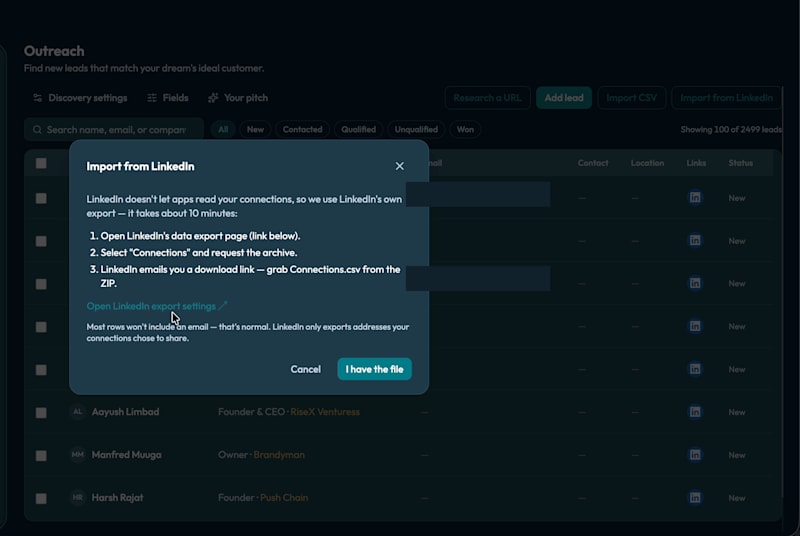
step 01 export instructions
The import walkthrough. LinkedIn emails you the archive; Connections.csv is inside the ZIP.
Then the one decision that matters: how strict the relevance filter should be. Every contact is scored by AI against your dream's brief, and only people at or above the bar enter your CRM. Strict (70%) for a short high-conviction list, Balanced (50%) as the sensible default, Broad (30%) if you'd rather prune by hand:
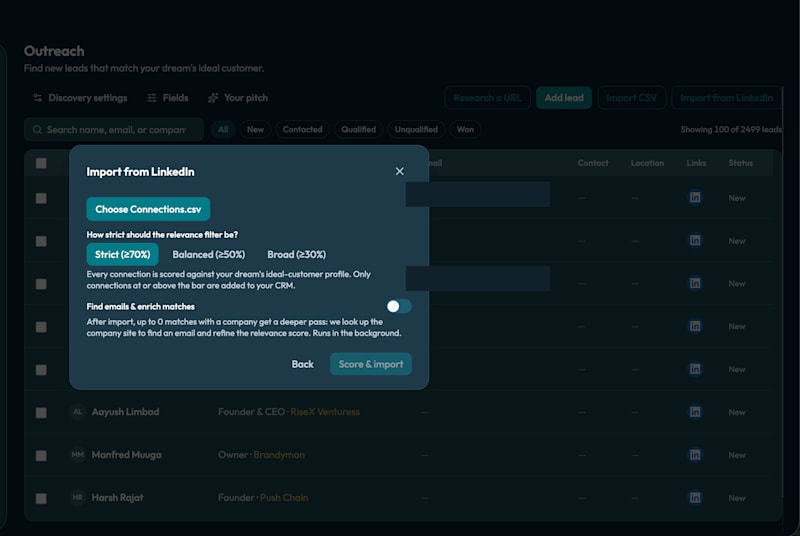
step 02 import settings
Relevance scoring on the way in: the AI reads your whole brief, so it judges “would this person care about this work,” not “is this person important.”
A few minutes later the CRM is populated, and the Relevance column sorts your entire network by “most likely to care”:
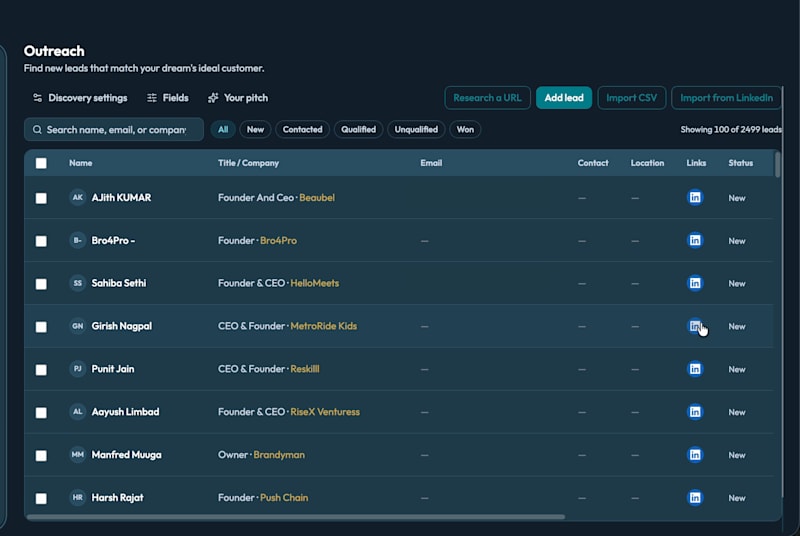
step 03 leads imported
The leads table after import. The top of this list is where personal announcements go first.
✉️ Step 3: Batches, not blasts
Here's the part that matters. We did not press one button and email 2,223 people. That's how you end up in spam folders and, worse, how you make a personal announcement feel like marketing.
Instead, the announcement went out as email sequences in four batches, each email personalized with merge tokens and sent under Rajan's own name:
“Hope you have been doing well {{first_name}}, Rajan Philips here, and I'm proud to share that I have started a YouTube channel called Wordsmith's Corner, a home for my love of language, writing, and the stories behind words.”
Roughly 300 personal emails have gone out so far, paced batch by batch. Pacing does two things: it protects deliverability (300 emails leaving one address in an hour looks like spam to every filter on the internet), and it means replies arrive in waves Rajan can actually respond to. Sequences pause and resume per batch, which we used between rounds.
And because DreamStarter's outreach is approval-gated by design, nothing was sent that Rajan hadn't signed off on. Every draft waits in a review queue with three buttons: approve, edit, or skip. The agents do the assembly; the sender stays human. ✅
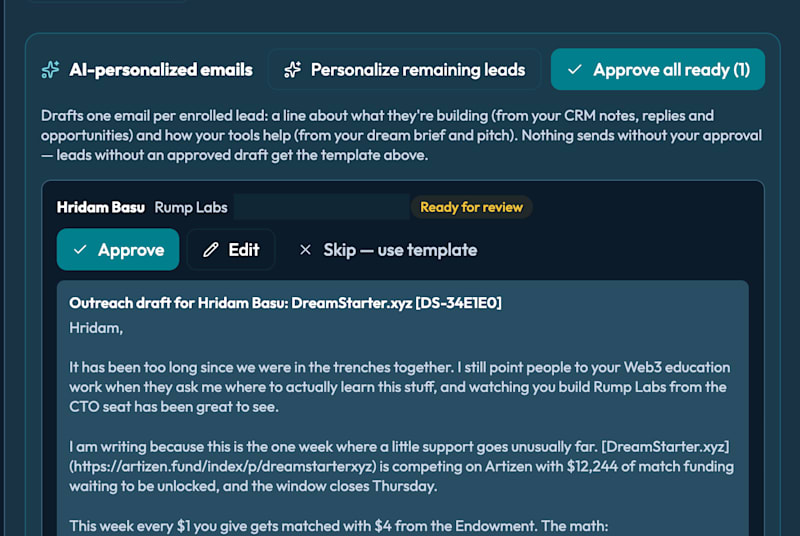
step 09 drafts panel
The review queue (shown on our own dream): one AI-personalized draft per lead, and approval is the only path to a send.
🔌 Connect the mailbox you'll send from
Every automated email on DreamStarter leaves from a mailbox the dreamer connects, never from a DreamStarter address. That's deliberate: an announcement should arrive from your name, build your own sending reputation, and collect replies where you can actually answer them. In your dream's settings, under Sending, here's how to plug yours in:
🌐 Connect your mailbox over SMTP/IMAP. This is how every dream sends today, and it works with practically any provider: Gmail, Zoho, cPanel or Hostinger, GoDaddy, PurelyMail. Pick your provider from the preset list and the host and port prefill; add your email address and password, then hit Test connection: it verifies the sending leg and the receiving leg separately and tells you exactly which one failed if something's off. Nothing saves until the test passes.
📮 Using Gmail or Google Workspace? Connect it the same way with an app password: in your Google Account, turn on 2-Step Verification, then create an App Password (Google Account → Security → App passwords) and paste that 16-character password into the SMTP form instead of your normal one. Takes about two minutes. A one-click “Connect Google” button is on the way; it's currently in review with Google, and until it ships the app-password route is the supported path.
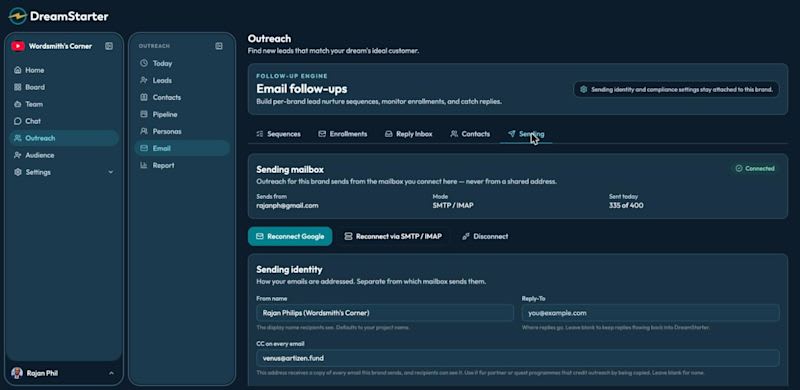
Sending mailbox settings: connected SMTP/IMAP mailbox with daily cap
Rajan's live Sending tab: the connected SMTP/IMAP mailbox, and the daily cap doing its job. 335 of 400 sent today; the rest wait for tomorrow.
Two guardrails come with every connected mailbox. First, a per-mailbox daily send cap (400 a day by default, safely under Gmail's own limits): if a batch would push past it, the sequence pauses and resumes the next day rather than failing anyone. Second, loud failure: if the connection breaks, say a changed password revokes the token, your sequences pause with a visible “reconnect your mailbox” prompt instead of silently stalling mid-campaign.
🧱 Build the sequence, batch by batch
A sequence is a small flowchart made of four step types: Send (an email), Wait (a delay in hours or days), Branch (split the path on opened or replied), and Task (a manual to-do for you, like “call this one personally”). Rajan's announcement needed exactly one Send step per batch. A follow-up version adds a Wait and a second, shorter Send that only the branch of people who didn't reply will ever see.
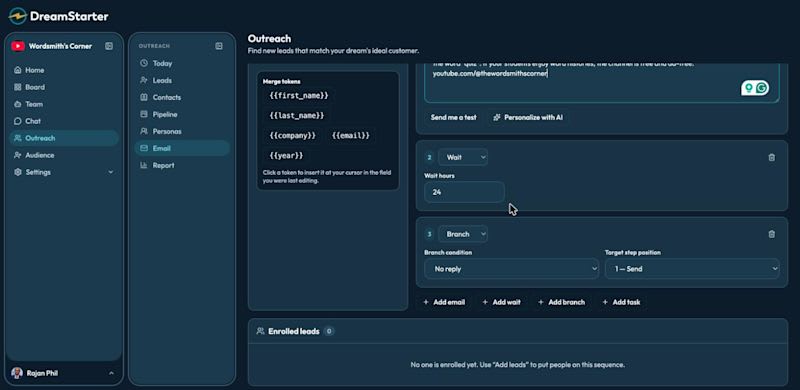
Wait and Branch steps in the sequence builder
Wait and Branch in the builder: pause 24 hours, then route people who haven't replied to the next email. Everyone else simply drops out of the flow.
Merge tokens do the personalization: {{first_name}}, {{company}} and friends work in the body and the subject line. Rajan's subject was literally “Hi {{first_name}}, Rajan Philips here!” so every one of 300 emails opened with the recipient's own name. An unsubscribe link is appended automatically to every send; that part of the law is not optional and the platform treats it that way.
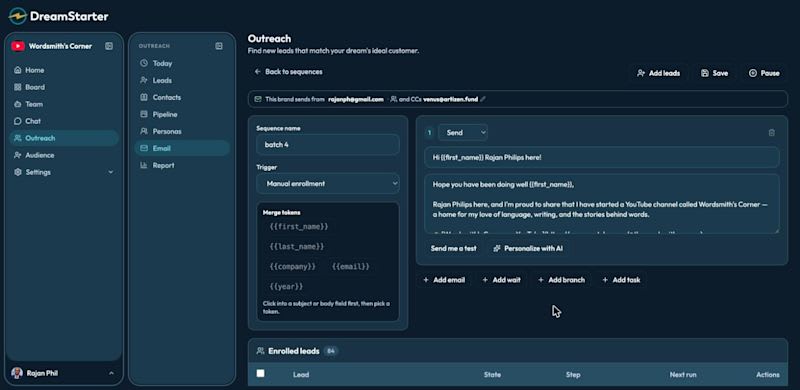
The batch 4 sequence builder with Rajan's announcement email and merge tokens
Rajan's actual batch 4 in the builder: his subject and announcement with {{first_name}} tokens, the merge-token palette on the left, and the banner confirming which mailbox this brand sends from.
The batching tactic itself is unglamorous and it works: one sequence per batch, named plainly (Rajan's are literally called batch 1 through batch 4), each enrolling a slice of the list. One thing to know: activating a sequence that contains a Send step requires a connected mailbox for that dream, and the builder shows exactly which address it will send from. Task-only cadences run fine without one.
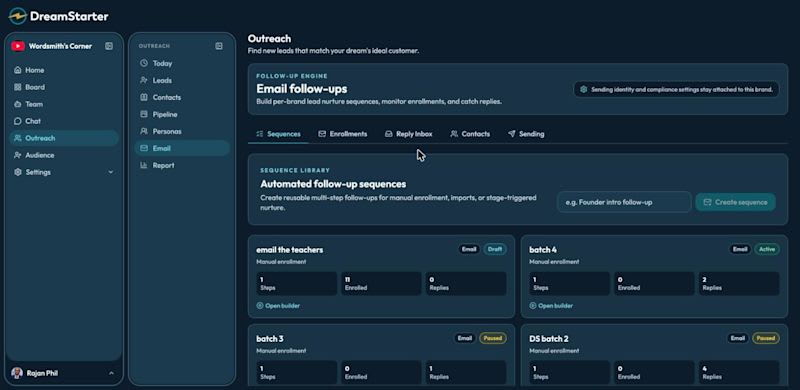
Wordsmith's Corner sequence library: announcement batches and the teacher campaign
The sequence library on Wordsmith's Corner: the four announcement batches (paused between rounds), the teacher campaign, and the reply counts per batch.
📤 Enroll, pace, and let replies stop the machine
Enrolling is done from the leads table: select the people for this round, enroll them in the sequence. Each lead gets their own enrollment, which means you can pause or resume one person, or the whole batch, at any time. We paused between every round of Rajan's announcement to let replies land and get answered before the next wave went out.
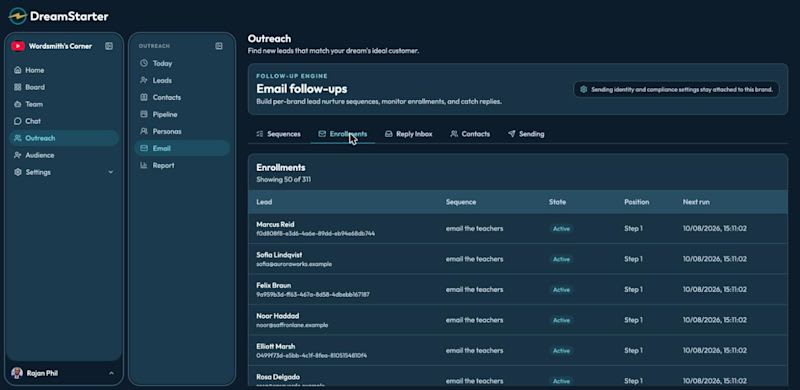
Enrollments view: per-lead state across sequences
The Enrollments view tracking 311 enrollments: who is on which sequence, what state they're in, and when their next step runs.
The detail that makes sequences safe for a personal network is stop-on-reply: the moment someone replies, their enrollment stops automatically. Nobody who wrote back a warm “Rajan! So happy for you” gets a scheduled follow-up three days later. And because sending runs through your own mailbox, replies simply arrive in your own inbox as normal; DreamStarter watches the inbox over IMAP and stops the right enrollment when a reply lands.
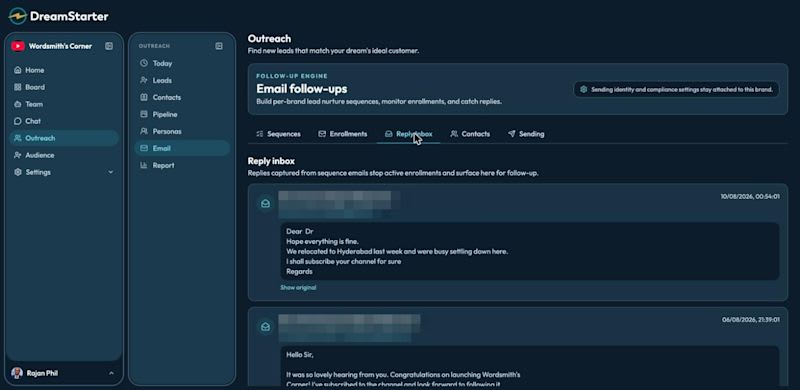
Reply inbox with captured replies (names redacted)
The Reply Inbox (names redacted): each captured reply has already stopped its sender's enrollment. “I shall subscribe your channel for sure” is the machine working.
That's the whole machine Rajan ran: mailbox connected once, four small sequences, roughly 300 personal emails, replies arriving in answerable waves, and not one person emailed twice by accident. ✅
🏫 Step 4: The audience he doesn't know yet
The next sequence sitting in draft is called, literally, “email the teachers.” This is where the Google Maps and Apollo discoveries come in: English teachers and academies who have never heard of Rajan but are exactly who the channel serves. Same machinery, different relationship, so the copy changes from “old friend announcement” to “here's a free resource your students will love.”
That's the quiet power of running this from a CRM instead of a mail merge: the warm network and the cold audience live in one place, scored against the same dream, but they never get the same email.
🎬 What's next
Wordsmith's Corner is a video dream, so the video agents are next: pointing DreamStarter's Video Clipper at the channel so every new explainer automatically becomes short clips with captions, ready for social. The goal is simple: Rajan records the videos he loves making, and the machine handles everything that comes after.
💡 Steal this workflow
If you have a passion project and an address book, this is the playbook:
🧠 Create your dream first, so every agent knows what it's helping with.
📥 Import your contacts (CSV or LinkedIn export) and let discovery find the strangers who'd care.
✉️ Announce in personalized, paced batches under your own name, never one blast.
✅ Approve every email before it goes; approval-gated is the default, not an option.
🔁 Keep warm and cold audiences in the same CRM with different sequences.
Your first dream is free. Start it at DreamStarter.xyz ✨
More from this workflow: how the same import and review-gated sending powered the Artizen Send Love Letters quest. Next in Workflow Stories: the fan account that posts every day on four platforms. 💚