How to Use Video Clipper: One YouTube Channel, Two Months of Short Clips, Zero Editing
 Arun Philips
Here is what one Video Clipper pipeline delivers when you point it at a YouTube channel and leave it alone for two months: about 60 short clips, one posted every evening, to four platforms at once. Every clip arrives with a hook headline burned into the frame, word-by-word captions, a vertical 9:16 crop that follows whoever is speaking, and captions written separately for LinkedIn, X, Instagram and YouTube. Nobody scrubbed a timeline. Nobody exported a file. The channel kept uploading long videos, and the short ones kept appearing.
That is the outcome. This post is the how.
🧭 What Video Clipper actually does
The card's own description says it plainly: Convert your long videos into punchy 9:16 short clips with catchy headlines. Paste a video link, channel, or Google Sheet of links.
Behind that one sentence sits a five-stage pipeline run by two of your agents, the Research Analyst and the Social Media Manager. For each source video the pipeline downloads it, transcribes it word by word, asks Gemini to pick the strongest moments, renders each moment as a vertical clip with headline and captions, and hands the finished clips to your posting queue. The queue then publishes one clip a day at 7 PM in your dream's timezone to every social account you have connected.
The whole thing lives on your Dream Board, in the Content column, as a card called Video Clipper. Look for the small (i) icon on the card: it links back to this guide.
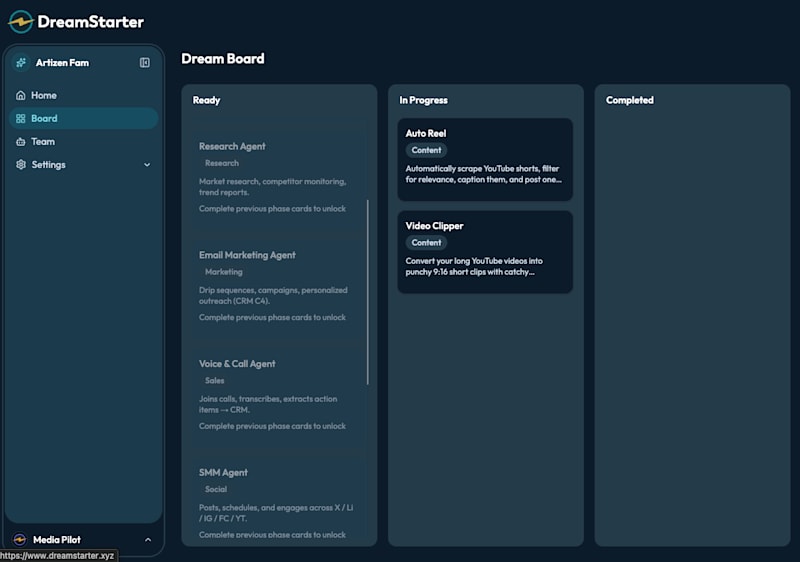
The Video Clipper card in the In Progress column of a dream board. The (i) on the card opens this tutorial.
✅ Before you start: two things to check
Connect your social accounts. Finished clips only auto-post if at least one platform is connected. Go to Settings, then Social accounts, and connect the ones you want: X, LinkedIn, Instagram, YouTube, TikTok or Farcaster. If nothing is connected, clips still render and wait for you in the Clips Ready gallery, but nothing goes out.
Know the cost. Each finished clip costs 20 credits. Two clips per video on a weekly channel is a very small line item; the pipeline is designed to run for months.
1️⃣ Step 1: Point it at a source
Open the card and expand Create New Pipeline. The first field is a single box that accepts almost anything: Paste a URL, channel, or Google Sheet link. The dropdown also lists YouTube channels DreamStarter already found for your dream, and any video already in your library.
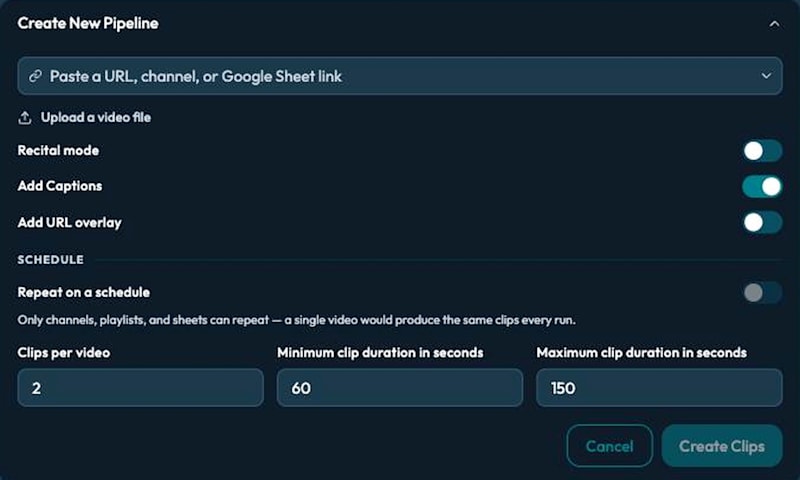
The setup form. One field for the source, three toggles, then the schedule.
The source decides how the pipeline behaves, and the form tells you which one it detected:
A YouTube channel. The workhorse. Every run clips the newest videos you have not clipped yet, up to three per run, and skips anything already done. This is the setting that produces the two-month autopilot result.
A single video. Clipped once. Good for testing your settings on one known-good talk before pointing the pipeline at a whole channel.
A playlist. Treated like a channel: newest first, skipping what is done.
A public Google Sheet of YouTube links. Each run pulls the links listed in the sheet, up to ten per run. This is how you curate: put the exact talks, interviews or concerts you want in a sheet and the pipeline works through them. The sheet must be viewable by anyone with the link; a private sheet fails with a clear message.
Upload a video file. MP4, MOV or WebM up to 200 MB, for footage that is not on YouTube. Uploads run once.
2️⃣ Step 2: Set the rules for every clip
Three numbers and three toggles control what a finished clip looks like.
Clips per video (1 to 10, default 2). How many moments to pull from each source video. Two is the sweet spot for talks and interviews; one for performances.
Minimum and maximum clip duration (15 to 300 seconds, default 60 to 150). Gemini picks moments inside this window. Sixty to one hundred fifty seconds fits Instagram Reels, YouTube Shorts and LinkedIn. Clips over 139 seconds automatically get a trimmed variant for X, which caps video at 140 seconds for standard accounts, and the trim keeps the ending rather than the opening.
Add Captions (on by default). Burns word-by-word karaoke captions into the clip, three words per line, timed from the transcript. Leave this on for anything with speech.
Add URL overlay. Stamps a URL on the clip. If you leave it empty, the pipeline falls back to the CTA URL set in your dream's video settings.
Recital mode. Skip this for talks and interviews; it is covered in its own section below.
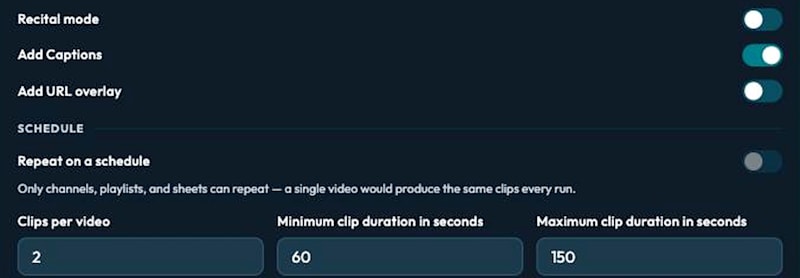
Clips per video and the duration window. Defaults are tuned for talks and interviews.
3️⃣ Step 3: Repeat on a schedule
This is the toggle that turns a one-off job into a media operation.
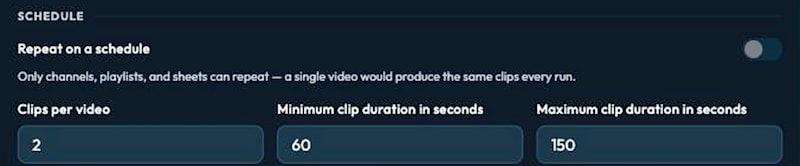
Repeat on a schedule with the cadence picker.
Turn on Repeat on a schedule and choose a cadence: Daily, Every 3 days or Weekly. The hint under the toggle explains the loop exactly: Each scheduled run clips the newest video you haven't clipped yet. When there's nothing new, it waits for the next upload. So a weekly channel with a weekly cadence never re-clips old videos and never idles for long. A single video cannot repeat, because it would produce the same clips every run, and the form says so.
Match the cadence to the channel. A channel that uploads a few times a week wants Daily or Every 3 days. A weekly show wants Weekly. The posting side is independent of the clipping side: however many clips arrive, the queue still releases exactly one per day.
4️⃣ Step 4: Create Clips and watch it run
Click Create Clips. A confirmation restates your settings, for example This will process your source video(s), creating 2 clip(s) each, 60–150 seconds long. Click Start.
The pipeline row on the card shows the stage it is in:
Downloading video(s) pulls the source and a lightweight preview copy.
Transcribing audio produces a word-level transcript and analyzes the footage: how many speakers, whether it is an interview, a tutorial, a performance.
Analyzing with Gemini picks the clip windows and writes a headline for each. Moments that score below a relevance threshold are dropped rather than rendered.
Rendering clips crops, stitches, adds the headline and captions, makes a thumbnail, and prepares the X variant.
A long interview takes a while; you do not need to keep the tab open. The card polls in the background, and finished clips appear in the Clips Ready gallery at the top of the card.
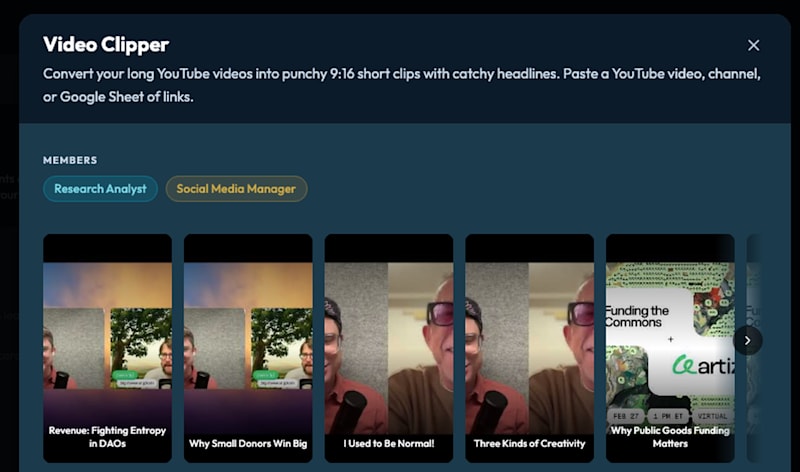
Clips Ready on the Artizen Fam dream: every clip carries its own headline. Anything here is already in the posting queue if a platform is connected.
🤖 What the agents do that you never see
Speaker-aware cropping. A two-person interview is a wide frame, and a plain center crop shows two half faces. The pipeline detects who is speaking at each moment and keeps the 9:16 crop on the active speaker, cutting between them as the conversation moves. Portrait sources get a letterbox with the headline above; landscape sources with one speaker are letterboxed too.
Headlines. Every clip gets a short hook headline, written from the transcript and rendered into the frame. The same headline seeds the social captions.
Captions per platform. Before a clip posts, a caption pass writes a dedicated version for each platform: a longer LinkedIn post, a tight X post, a hashtag-aware Instagram caption, and a YouTube title and description. It reads the transcript and your dream's knowledge base, and when it recognizes a person or company from your CRM it tags them.
The daily slot. Finished clips join the posting queue at one per day, 7 PM in your dream's local time, interleaved across source videos so two clips from the same talk never post back to back. Open the Posting card to see the calendar, edit a caption, or drag a clip to another day.
🎻 Recital mode, for musicians
Talks have quotable moments. Concerts have a climax. Recital mode is a preset built for long performances, and it changes what the pipeline looks for.
Turn on Recital mode and the form sets itself to one clip per video, 150 to 180 seconds, captions off. The hint reads: One powerful clip from a long performance: picks the peak of the recital, crops in on the performer, and adds a hook headline. Best with 2+ hour concert videos.

The three toggles. Recital mode presets the form to one clip, two and a half to three minutes, no captions.
Under the hood it does three musician-specific things. It listens to the whole recording and locates the acoustic peak, so the clip lands on the finale rather than the tuning-up. It builds the clip as a short montage of two to four passages from across the performance, stitched with audio fades, so a three-minute clip carries the arc of a two-hour concert. And it tracks the soloist through camera cuts, keeping the performer in frame in the vertical crop even when the source switches angles. Spoken introductions and emcee announcements are detected from the transcript and dropped.
We built this with a sitar channel, using full recitals between forty minutes and two hours, and it now runs weekly from a Google Sheet of concerts. If you publish performances, this is the mode to start with.
🛠️ When something goes wrong
A pipeline shows failed. The row tells you why in plain language: a private sheet, a video that could not be downloaded, a stage that timed out. Click Retry; a retry restarts from the failed stage, not from scratch. Stop halts a running pipeline; delete removes it.
It says waiting for new uploads. That is a scheduled channel pipeline doing its job: there was nothing new since the last run. It will check again on the next cadence.
Clips rendered but nothing posted. Check Settings, then Social accounts. An expired connection shows a banner at the top of the card with a reconnect link.
A Google Sheet fails. Open the sheet's share settings and set it to anyone with the link can view. Any column can hold the links; the pipeline scans every cell.
🚀 Ten minutes, then two months
Paste a channel. Keep the defaults. Turn on the schedule. That is the whole setup, and it is the setup that produced sixty posted clips on four platforms without a single manual edit.
Your first dream on DreamStarter is free. Create one at dreamstarter.xyz, connect a social account, and point Video Clipper at the channel your audience already watches.