Workflow Stories #3: The EdTech Founder Whose Follow-Ups Send Themselves
 Arun Philips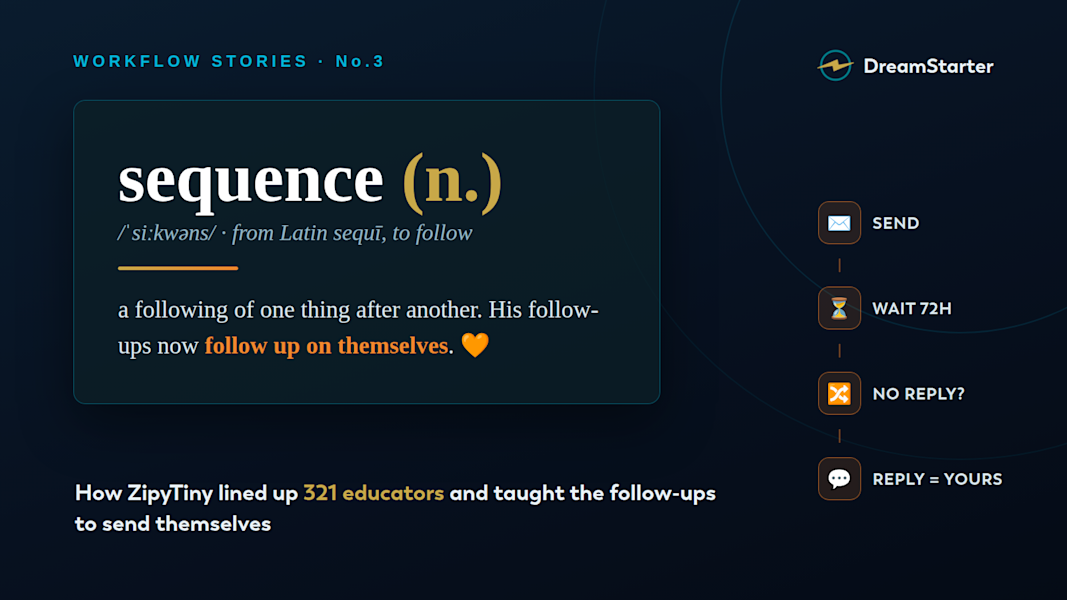
Workflow Stories is our series of first-person walkthroughs of real workflows, shown through the dreams of our first users. Story one reached 2,000 writers without a spam blast. Story two ran a four-platform fan account with one human. Story three is about the quietest, highest-leverage workflow of them all: the follow-up. ✨
On August 7th, Bahirathan created a dream called ZipyTiny, an EdTech project with a simple problem hiding inside a big one. The big one is the one every education founder knows: the people you want to reach, teachers, tutors, school decision-makers, have the busiest inboxes on the internet. The simple one: reaching them takes more than one email, and nobody has time to remember who got which email when.
Less than three weeks later, ZipyTiny's CRM holds 321 leads, and none of them were typed in by hand. The dream's discovery agents found 170 through Apollo, 75 through Google Maps, and 46 through Instagram, and another 30 were spotted appearing in videos by the same recognition workflow that powers our Artizen Fam story. Discovery is still on, quietly adding around 30 more each cycle.
And on August 13th, Bahirathan did the thing this whole story turns on: he connected bahirathan@zipytiny.app as the dream's sending mailbox. It has been active ever since.
Which means everything is in place for the part people actually mean when they say "email outreach": the follow-up. Not the first email. The third one, sent at the right hour, three days later, only to the people who didn't reply to the second one. That's what sequences are for, and this guide is the one we wish every founder read before sending their first cold email.
What a sequence actually is
A sequence in DreamStarter is a small machine built from four kinds of steps. Send is an email. Wait is patience, measured in hours. Branch is a decision: it looks at what a lead did (no reply, opened, replied) and jumps them to a different step. Task is the human move: the sequence parks and waits until you've done something a robot shouldn't, like sending a voice note, and marked it done.
Chain those together and you get: introduce yourself, wait three days, and if there was no reply, send a gentle nudge, then hand it to a human. Every lead moves through the machine on their own clock. Your job shrinks to two moments: building it once, and answering the replies it wins. Here's how to build one, using ZipyTiny's own setup as the example.
📬 Step 1: Connect the mailbox your emails should come from
Everything sends from a mailbox you own. DreamStarter never sends your outreach from a shared platform address, because deliverability is reputation, and the reputation should be yours.
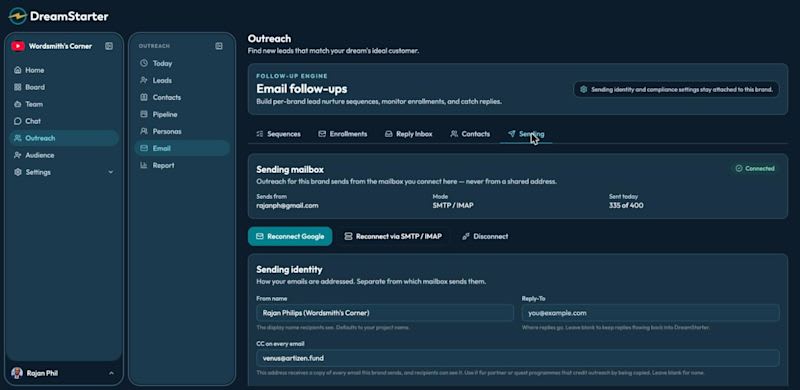
Sending mailbox settings: connected SMTP/IMAP mailbox with daily cap
The Sending tab: mailbox status, mode, and today's send count against the daily limit.
Head to your dream's Email Follow-ups area and open the Sending tab. Right now, mailbox connection works over SMTP / IMAP, which covers Zoho, cPanel hosts, GoDaddy, PurelyMail, and Gmail via an app password. (One-click Connect Google is built and currently in review with Google, so for now the SMTP route is the way in.) You'll paste your host, port, and credentials once, and DreamStarter verifies the connection before saving it.
Two settings here deserve a minute. Sending identity controls the From name recipients see and where replies land; leave Reply-To blank and replies flow back into DreamStarter's reply inbox, forwarded to your real mailbox too. And the daily send limit (400 by default) is not a restriction to fight, it's armor: it keeps your mailbox from behaving like a spammer on day one.
ZipyTiny's mailbox has been green since August 13th: bahirathan@zipytiny.app, SMTP mode, zero errors, replies forwarding.
🧱 Step 2: Create the sequence and lay out the steps
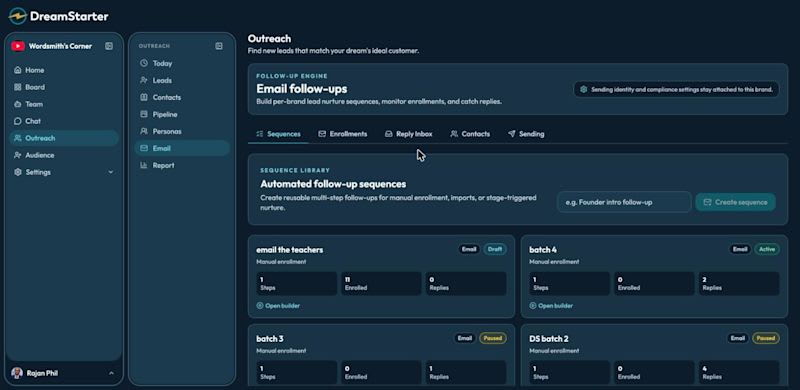
Wordsmith's Corner sequence library: announcement batches and the teacher campaign
The sequence library: every follow-up machine this dream runs, with steps, enrollments and replies at a glance.
In the Sequences tab, hit Create sequence and name it for the job it does. Bahirathan called his "education sequence," which tells you exactly what it's for.
The builder opens on a timeline with four buttons that matter: Add email, Add wait, Add branch, Add task. A follow-up shape that works almost everywhere: an intro email, personal, short, one clear question. Then a wait set to 72 hours. Then a branch with the condition No reply, so anyone who already answered never gets nudged. Then the nudge, shorter than the intro. Then a task step titled "personal follow-up," which parks the sequence and puts a to-do in your Today list, because by the fourth touch a human should take over.
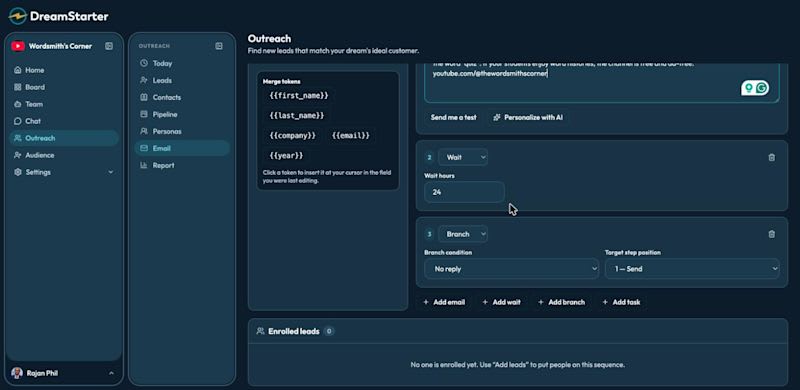
Wait and Branch steps in the sequence builder
Wait and branch steps in the builder: 72 hours of patience, then a decision based on what the lead did.
Inside every email, use merge tokens: click into the subject or body, then click a token like the lead's first name or company, and it drops in at your cursor. One template, 321 personal-looking emails.
🤖 Step 3: Let the agents write the personal version
A template with merge tokens is fine. What's better is the AI-personalized emails panel: it drafts one email per enrolled lead, pulling a line about what that specific person is building from your CRM notes. Each draft comes back for review, and nothing sends without your say-so: you Approve the good ones, Edit the almost-good ones, or Skip any lead who should just get the template. Prefer full control? "Write them myself" creates blank drafts for you to fill.
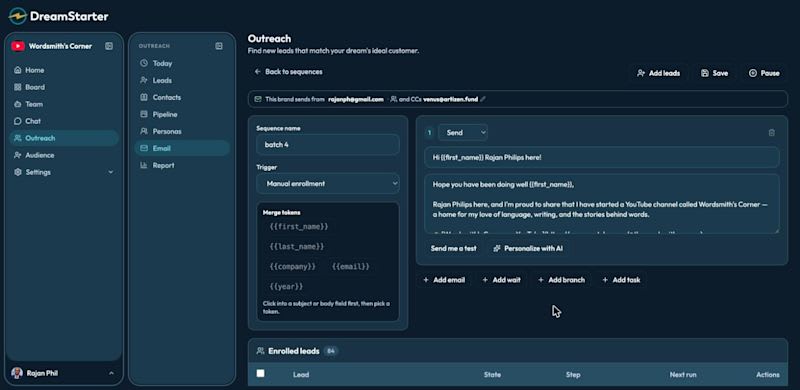
The batch 4 sequence builder with Rajan's announcement email and merge tokens
The builder with drafts in review: one personalized email per enrolled lead, each waiting for your approve.
This is the difference between "bulk email with a first-name token" and "the email a diligent intern would have written, if you had 321 diligent interns."
👥 Step 4: Enroll the leads
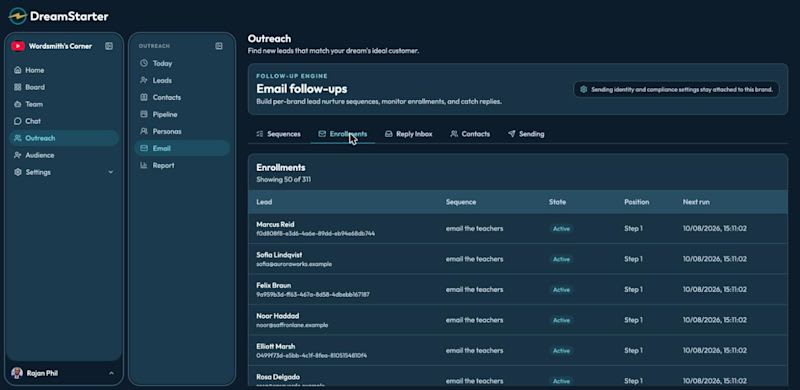
Enrollments view: per-lead state across sequences
The enrollments view: who is in which sequence, at which step, and when their next email goes out.
Add leads opens a picker over your CRM: search by name, email, or company, tick the ones you want, done. The picker is honest about edge cases: leads with no email address get skipped and it tells you so, anyone who has unsubscribed is skipped automatically (suppression is dream-wide and permanent), and a lead can only be in a given sequence once, so a double-click can't double-send.
Manual enrollment is one of three triggers. A sequence can also enroll leads automatically when they enter a pipeline stage (move someone to "Engaged" and the machine takes it from there) or on import, so a freshly uploaded list starts warming immediately.
ZipyTiny already has 13 educators enrolled in the education sequence. Which brings us to the step that, as of this writing, is the only one left.
🚦 Step 5: Test it, then press Activate
Here is the single most important sentence in this guide: a draft sequence never sends anything. Enrolled leads simply wait, fully staged, at step one. This is by design, and it's currently the exact state of ZipyTiny's education sequence: 13 educators enrolled, engine warm, first email still empty.
DreamStarter will hold that line for you. Try to activate a sequence with no real email or task step and the builder refuses: "Add an email or task step before activating." If AI drafts are still unapproved for some enrolled leads, it tells you how many before letting you launch. If a branch points at a step that doesn't exist, the exact step gets highlighted until it's fixed. The machine would rather block you than embarrass you.
So the launch ritual is three moves. Write the email, or approve the drafts. Hit Send me a test, which delivers the real email, merge fields resolved, to your own inbox; read it on your phone like a stranger would. Then press Activate. From that moment the scheduler takes over: sends go out through your mailbox, spread within your daily limit, and every enrollment advances on its own timeline.
And if your mailbox breaks mid-flight, or you hit the daily limit? Sequences don't fail silently. Enrollments visibly pause, the Enrollments tab says exactly why ("no working mailbox," "daily send limit reached"), and they resume automatically the moment the mailbox is back or the 24-hour window rolls over.
💬 Step 6: The whole point is the reply
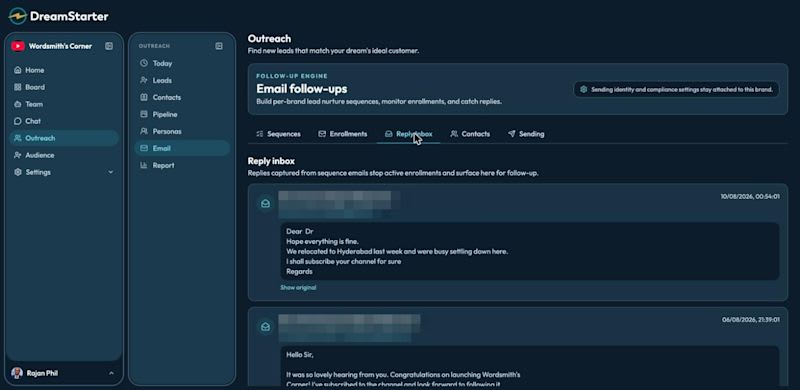
Reply inbox with captured replies (names redacted)
The reply inbox: every answer captured, quoted noise stripped, the sequence already stopped for that lead.
When a lead replies, the machine's first act is to get out of the way: that lead's enrollment stops instantly, and no nudge ever follows an answer. The reply lands in the Reply Inbox inside your dream, and a copy is forwarded to your connected mailbox so it also shows up where you actually live.
That's the shape of the whole feature: agents handle the schedule, the patience, and the who-got-what bookkeeping. The moment a human enters the conversation, it's yours.
ZipyTiny went from zero to 321 qualified education leads, a verified sending mailbox, and a staged follow-up machine in under three weeks, with one person behind it. The 13 educators in that first sequence are one written email and one press of Activate away from hearing about it. 🧡
Your first dream is free at DreamStarter.xyz ✨
Previously in Workflow Stories: 2,000 writers, zero spam blasts and the four-platform fan account with a population of one.